Paint the City
VRain 팀이 제안하는 도시재생 모델로
1. 도시 재생이 필요한 지역을 3d모델의 형태로 구현하여 사용자들에게 제공을 하여 해당 사용자들이 vr로 도시에 그림을 그리고 원하는 에셋을 삽입
2. 다른 사용자들의 작품을 보며 피드백을 하고 지자체와 사용자를 연결하여 모델을 구체화한다.
3. 기존에는 유니티 에셋 스토어에서 도시 배경을 구입해서 사용하려고 계획했으나, 실제 도시를 배경으로 작품을 전시하는 것이 목적이었기 때문에 (서울 지역으로 범위를 제한하여) 직접 도시 모델링을 진행하고 도시의 범위를 넓혀 다른 나라 등의 도시 모델링에도 이 방법을 적용한다.
이에 필요한 해당 지역 3D모델 제공, 작품 생성, VR과 AR을 통한 작품 적용 및 관람에서 본인은 AR 개발 파트를 맡았다. 보다 구체적으로는 오큘러스 기기를 이용한 VR과 AR 작품 전시 본인과 타인의 작품을 시뮬레이션하고 즉각적인 피드백 및 수정이 가능하다. 오큘러스 퀘스트로 작품 생성 후 전시된 작품을 바로 확인할 수 있을 뿐만 아니라, 3D 페인팅 프로그램과 연동한 AR 어플리케이션을 통해 해당 장소에 직접 방문하여 작품을 확인할 수 있다. 작품을 생성한 해당 위치의 이미지를 타겟으로 설정하여 그 위치에서 카메라를 인식하면 작품이 보이도록 구현한다. 부가 기능으로 해당 도시 직접 방문 시에 제공되는 미션과 보상도 지급하고자 한다. ‘포켓몬 고’ 게임과 같이 해당 위치에 사용자가 도달하면 작품 QR코드가 발급되고 이를 통해 AR시뮬레이션을 돌릴 수 있다. 이때 본인 작품과 더불어 지역 소개 및 주변 맛집과 핫플레이스 등 홍보도 같이 제공되며 시뮬레이션 미션을 완수 시 랜덤하게 지역 화폐 등 리워드가 지급된다.
도지재생 단계별로 쓰이는 AR
1단계: 외부인의 방문 계기 마련_ 전주, 경주, 부산과 같이 이미 유명한 관광 지방 도시 보다는 성동구 성수동과 같은 도심 속 낙후 지역의 도새재생 모델에서 착안하여 해당 지역에서만 체험할 수 있는 커스터마이즈된 경험 제공: 개인이 직접 창작한 작품 전시 및 관람, ar 체험 등
2단계: 지역 내의 추가 소비활동 유도를 통한 내수 경제 활성화_ ar 관람시 가까운 맛집 및 핫플레이스를 소개하는 팝업 생성, 앱을 이용한 미션 수행 및 친구 초대 시 해당 지역 내에서 쓸 수 있는 지역화폐 및 포인트 제공, 지역 관광 및 소비 시 10% 비용 환급 등 리워드 제공
3단계: 마케팅을 통한 장기적 관광객 유치_사진 기능을 이용하여 sns에 인증샷 업로드 릴레이와 맞춤 검색 키워드(해시태그 등)를 생성하여 바이럴을 통한 추가 관광객 유치, 낙후 지역의 도시재생과 거리예술 참여기회를 제공함으로서 윤리적 문화생활을 선도하길 원하는 mz세대 겨냥, 성수 대림창고와 주변 벽화거리처럼 외부에서 관광 컨텐츠 관련 광고를 받는 등 수익 모델을 통해 지역 인프라 구축 및 지원에 재투자를 통한 활성화
그럼 사용자들이 틸트브러쉬를 이용해 vr환경에서 작품을 만든 후 (타 팀원이 작성), 실제 도시의 공간에 방문하여 해당 작품들을 관람 및 체험을 할 수 있는 AR 작품 전시를 위한 개발 과정을 기술하겠다.
1. Mapbox 설치 및 실행

1 Maps SDK | Unity | Mapbox 에서Mapbox 가입
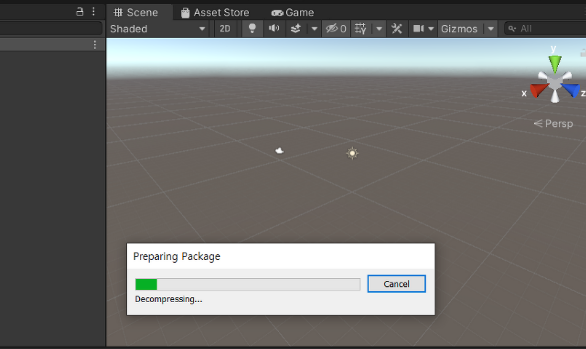
2 Mapbox install > Assets-Import Package-Custom Package를 할때
Mapbox Setup창이 뜨지 않고 import 하다가 pause 반복하는 에러 발생
구글링을 한 결과unity는 계속 업데이트 되는데 import되는 mapbox가 2019에 멈춰서 버전이 안 맞아 충돌이 일어나는 19년도부터 이어져온 오류라고 한다.
1 Mapbox import 오류

cs0618 에러)The name 'heading' does not exist i the current context
mapbox setup 팝업창이 생성되야하는데 pause되어 메뉴판이 나타나지 않는 오류다.
해당 Error Pause창을 클릭하면

위의 코드가 나온다.
해결
namespace Mapbox.Unity.Location
{


	using System.Collections;
	using UnityEngine;
	using Mapbox.Utils;
	using Mapbox.CheapRulerCs;
	using System;
	using System.Linq;


	/// <summary>
	/// The DeviceLocationProvider is responsible for providing real world location and heading data,
	/// served directly from native hardware and OS.
	/// This relies on Unity's <see href="https://docs.unity3d.com/ScriptReference/LocationService.html">LocationService</see> for location
	/// and <see href="https://docs.unity3d.com/ScriptReference/Compass.html">Compass</see> for heading.
	/// </summary>
	public class DeviceLocationProvider : AbstractLocationProvider
	{


		/// <summary>
		/// Using higher value like 500 usually does not require to turn GPS chip on and thus saves battery power.
		/// Values like 5-10 could be used for getting best accuracy.
		/// </summary>
		[SerializeField]
		[Tooltip("Using higher value like 500 usually does not require to turn GPS chip on and thus saves battery power. Values like 5-10 could be used for getting best accuracy.")]
		public float _desiredAccuracyInMeters = 1.0f;


		/// <summary>
		/// The minimum distance (measured in meters) a device must move laterally before Input.location property is updated.
		/// Higher values like 500 imply less overhead.
		/// </summary>
		[SerializeField]
		[Tooltip("The minimum distance (measured in meters) a device must move laterally before Input.location property is updated. Higher values like 500 imply less overhead.")]
		public float _updateDistanceInMeters = 0.0f;


		[SerializeField]
		[Tooltip("The minimum time interval between location updates, in milliseconds. It's reasonable to not go below 500ms.")]
		public long _updateTimeInMilliSeconds = 500;


		[SerializeField]
		[Tooltip("Smoothing strategy to be applied to the UserHeading.")]
		public AngleSmoothingAbstractBase _userHeadingSmoothing;


		[SerializeField]
		[Tooltip("Smoothing strategy to applied to the DeviceOrientation.")]
		public AngleSmoothingAbstractBase _deviceOrientationSmoothing;


		[Serializable]
		public struct DebuggingInEditor
		{
			[Header("Set 'EditorLocationProvider' to 'DeviceLocationProvider' and connect device with UnityRemote.")]
			[SerializeField]
			[Tooltip("Mock Unity's 'Input.Location' to route location log files through this class (eg fresh calculation of 'UserHeading') instead of just replaying them. To use set 'Editor Location Provider' in 'Location Factory' to 'Device Location Provider' and select a location log file below.")]
			public bool _mockUnityInputLocation;

			[SerializeField]
			[Tooltip("Also see above. Location log file to mock Unity's 'Input.Location'.")]
			public TextAsset _locationLogFile;
		}

		[Space(20)]
		public DebuggingInEditor _editorDebuggingOnly;


		private IMapboxLocationService _locationService;
		private Coroutine _pollRoutine;
		private double _lastLocationTimestamp;
		private WaitForSeconds _wait1sec;
		private WaitForSeconds _waitUpdateTime;
		/// <summary>list of positions to keep for calculations</summary>
		private CircularBuffer<Vector2d> _lastPositions;
		/// <summary>number of last positons to keep</summary>
		private int _maxLastPositions = 5;
		/// <summary>minimum needed distance between oldest and newest position before UserHeading is calculated</summary>
		private double _minDistanceOldestNewestPosition = 1.5;


		// Android 6+ permissions have to be granted during runtime
		// these are the callbacks for requesting location permission
		// TODO: show message to users in case they accidentallly denied permission
#if UNITY_ANDROID
		private bool _gotPermissionRequestResponse = false;

		private void OnAllow() { _gotPermissionRequestResponse = true; }
		private void OnDeny() { _gotPermissionRequestResponse = true; }
		private void OnDenyAndNeverAskAgain() { _gotPermissionRequestResponse = true; }
#endif


		protected virtual void Awake()
		{
#if UNITY_EDITOR
			if (_editorDebuggingOnly._mockUnityInputLocation)
			{
				if (null == _editorDebuggingOnly._locationLogFile || null == _editorDebuggingOnly._locationLogFile.bytes)
				{
					throw new ArgumentNullException("Location Log File");
				}

				_locationService = new MapboxLocationServiceMock(_editorDebuggingOnly._locationLogFile.bytes);
			}
			else
			{
#endif
			_locationService = new MapboxLocationServiceUnityWrapper();
#if UNITY_EDITOR
			}
#endif

			_currentLocation.Provider = "unity";
			_wait1sec = new WaitForSeconds(1f);
			_waitUpdateTime = _updateTimeInMilliSeconds < 500 ? new WaitForSeconds(0.5f) : new WaitForSeconds((float)_updateTimeInMilliSeconds / 1000.0f);

			if (null == _userHeadingSmoothing) { _userHeadingSmoothing = transform.gameObject.AddComponent<AngleSmoothingNoOp>(); }
			if (null == _deviceOrientationSmoothing) { _deviceOrientationSmoothing = transform.gameObject.AddComponent<AngleSmoothingNoOp>(); }

			_lastPositions = new CircularBuffer<Vector2d>(_maxLastPositions);

			if (_pollRoutine == null)
			{
				_pollRoutine = StartCoroutine(PollLocationRoutine());
			}
		}


		/// <summary>
		/// Enable location and compass services.
		/// Sends continuous location and heading updates based on
		/// _desiredAccuracyInMeters and _updateDistanceInMeters.
		/// </summary>
		/// <returns>The location routine.</returns>
		IEnumerator PollLocationRoutine()
		{
#if UNITY_EDITOR
			while (!UnityEditor.EditorApplication.isRemoteConnected)
			{
				// exit if we are not the selected location provider
				if (null != LocationProviderFactory.Instance && null != LocationProviderFactory.Instance.DefaultLocationProvider)
				{
					if (!this.Equals(LocationProviderFactory.Instance.DefaultLocationProvider))
					{
						yield break;
					}
				}

				Debug.LogWarning("Remote device not connected via 'Unity Remote'. Waiting ..." + Environment.NewLine + "If Unity seems to be stuck here make sure 'Unity Remote' is running and restart Unity with your device already connected.");
				yield return _wait1sec;
			}
#endif


			//request runtime fine location permission on Android if not yet allowed
#if UNITY_ANDROID
			if (!_locationService.isEnabledByUser)
			{
				UniAndroidPermission.RequestPermission(AndroidPermission.ACCESS_FINE_LOCATION);
				//wait for user to allow or deny
				while (!_gotPermissionRequestResponse) { yield return _wait1sec; }
			}
#endif


			if (!_locationService.isEnabledByUser)
			{
				Debug.LogError("DeviceLocationProvider: Location is not enabled by user!");
				_currentLocation.IsLocationServiceEnabled = false;
				SendLocation(_currentLocation);
				yield break;
			}


			_currentLocation.IsLocationServiceInitializing = true;
			_locationService.Start(_desiredAccuracyInMeters, _updateDistanceInMeters);
			Input.compass.enabled = true;

			int maxWait = 20;
			while (_locationService.status == LocationServiceStatus.Initializing && maxWait > 0)
			{
				yield return _wait1sec;
				maxWait--;
			}

			if (maxWait < 1)
			{
				Debug.LogError("DeviceLocationProvider: " + "Timed out trying to initialize location services!");
				_currentLocation.IsLocationServiceInitializing = false;
				_currentLocation.IsLocationServiceEnabled = false;
				SendLocation(_currentLocation);
				yield break;
			}

			if (_locationService.status == LocationServiceStatus.Failed)
			{
				Debug.LogError("DeviceLocationProvider: " + "Failed to initialize location services!");
				_currentLocation.IsLocationServiceInitializing = false;
				_currentLocation.IsLocationServiceEnabled = false;
				SendLocation(_currentLocation);
				yield break;
			}

			_currentLocation.IsLocationServiceInitializing = false;
			_currentLocation.IsLocationServiceEnabled = true;

#if UNITY_EDITOR
			// HACK: this is to prevent Android devices, connected through Unity Remote,
			// from reporting a location of (0, 0), initially.
			yield return _wait1sec;
#endif

			System.Globalization.CultureInfo invariantCulture = System.Globalization.CultureInfo.InvariantCulture;

			while (true)
			{

				var lastData = _locationService.lastData;
				var timestamp = lastData.timestamp;

				///////////////////////////////
				// oh boy, Unity what are you doing???
				// on some devices it seems that
				// Input.location.status != LocationServiceStatus.Running
				// nevertheless new location is available
				//////////////////////////////
				//Debug.LogFormat("Input.location.status: {0}", Input.location.status);
				_currentLocation.IsLocationServiceEnabled =
					_locationService.status == LocationServiceStatus.Running
					|| timestamp > _lastLocationTimestamp;

				_currentLocation.IsUserHeadingUpdated = false;
				_currentLocation.IsLocationUpdated = false;

				if (!_currentLocation.IsLocationServiceEnabled)
				{
					yield return _waitUpdateTime;
					continue;
				}

				// device orientation, user heading get calculated below
				_deviceOrientationSmoothing.Add(Input.compass.trueHeading);
				_currentLocation.DeviceOrientation = (float)_deviceOrientationSmoothing.Calculate();


				//_currentLocation.LatitudeLongitude = new Vector2d(lastData.latitude, lastData.longitude);
				// HACK to get back to double precision, does this even work?
				// https://forum.unity.com/threads/precision-of-location-longitude-is-worse-when-longitude-is-beyond-100-degrees.133192/#post-1835164
				double latitude = double.Parse(lastData.latitude.ToString("R", invariantCulture), invariantCulture);
				double longitude = double.Parse(lastData.longitude.ToString("R", invariantCulture), invariantCulture);
				Vector2d previousLocation = new Vector2d(_currentLocation.LatitudeLongitude.x, _currentLocation.LatitudeLongitude.y);
				_currentLocation.LatitudeLongitude = new Vector2d(latitude, longitude);

				_currentLocation.Accuracy = (float)Math.Floor(lastData.horizontalAccuracy);
				// sometimes Unity's timestamp doesn't seem to get updated, or even jump back in time
				// do an additional check if location has changed
				_currentLocation.IsLocationUpdated = timestamp > _lastLocationTimestamp || !_currentLocation.LatitudeLongitude.Equals(previousLocation);
				_currentLocation.Timestamp = timestamp;
				_lastLocationTimestamp = timestamp;

				if (_currentLocation.IsLocationUpdated)
				{
					if (_lastPositions.Count > 0)
					{
						// only add position if user has moved +1m since we added the previous position to the list
						CheapRuler cheapRuler = new CheapRuler(_currentLocation.LatitudeLongitude.x, CheapRulerUnits.Meters);
						Vector2d p = _currentLocation.LatitudeLongitude;
						double distance = cheapRuler.Distance(
							new double[] { p.y, p.x },
							new double[] { _lastPositions[0].y, _lastPositions[0].x }
						);
						if (distance > 1.0)
						{
							_lastPositions.Add(_currentLocation.LatitudeLongitude);
						}
					}
					else
					{
						_lastPositions.Add(_currentLocation.LatitudeLongitude);
					}
				}

				// if we have enough positions calculate user heading ourselves.
				// Unity does not provide bearing based on GPS locations, just
				// device orientation based on Compass.Heading.
				// nevertheless, use compass for intial UserHeading till we have
				// enough values to calculate ourselves.
				if (_lastPositions.Count < _maxLastPositions)
				{
					_currentLocation.UserHeading = _currentLocation.DeviceOrientation;
					_currentLocation.IsUserHeadingUpdated = true;
				}
				else
				{
					Vector2d newestPos = _lastPositions[0];
					Vector2d oldestPos = _lastPositions[_maxLastPositions - 1];
					CheapRuler cheapRuler = new CheapRuler(newestPos.x, CheapRulerUnits.Meters);
					// distance between last and first position in our buffer
					double distance = cheapRuler.Distance(
						new double[] { newestPos.y, newestPos.x },
						new double[] { oldestPos.y, oldestPos.x }
					);
					// positions are minimum required distance apart (user is moving), calculate user heading
					if (distance >= _minDistanceOldestNewestPosition)
					{
						float[] lastHeadings = new float[_maxLastPositions - 1];

						for (int i = 1; i < _maxLastPositions; i++)
						{
							// atan2 increases angle CCW, flip sign of latDiff to get CW
							double latDiff = -(_lastPositions[i].x - _lastPositions[i - 1].x);
							double lngDiff = _lastPositions[i].y - _lastPositions[i - 1].y;
							// +90.0 to make top (north) 0°
							double heading = (Math.Atan2(latDiff, lngDiff) * 180.0 / Math.PI) + 90.0f;
							// stay within [0..360]° range
							if (heading < 0) { heading += 360; }
							if (heading >= 360) { heading -= 360; }
							lastHeadings[i - 1] = (float)heading;
						}

						_userHeadingSmoothing.Add(lastHeadings[0]);
						float finalHeading = (float)_userHeadingSmoothing.Calculate();

						//fix heading to have 0° for north, 90° for east, 180° for south and 270° for west
						finalHeading = finalHeading >= 180.0f ? finalHeading - 180.0f : finalHeading + 180.0f;


						_currentLocation.UserHeading = finalHeading;
						_currentLocation.IsUserHeadingUpdated = true;
					}
				}

				_currentLocation.TimestampDevice = UnixTimestampUtils.To(DateTime.UtcNow);
				SendLocation(_currentLocation);

				yield return _waitUpdateTime;
			}
}
	}
}
위의 코드로 수정 저장하여 import를 재개하였다.
결과
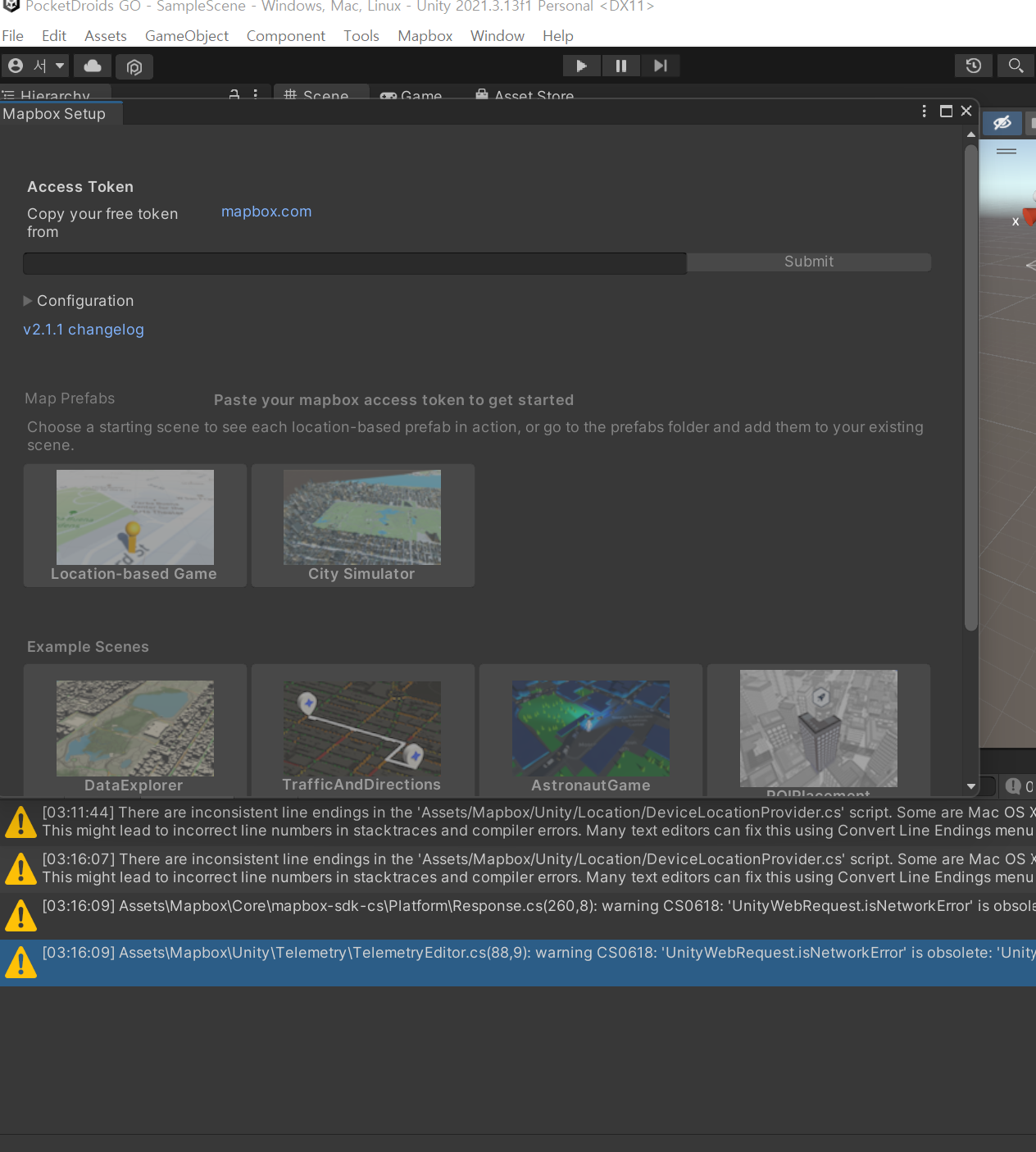
나머지가 import되고 mapbox setup창 생성

3 Account | Mapbox 에서 Default public token > copy
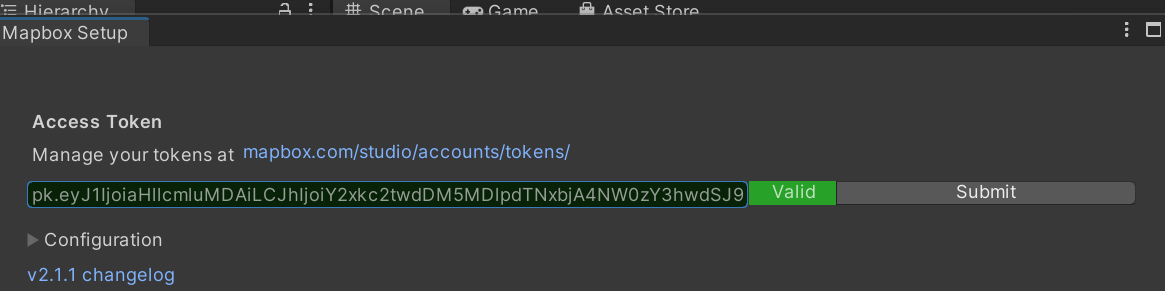
4 Unity에서 Mapbox Setup> Access Token 에 paste > (Valid 버튼이 활성화 되면) submit
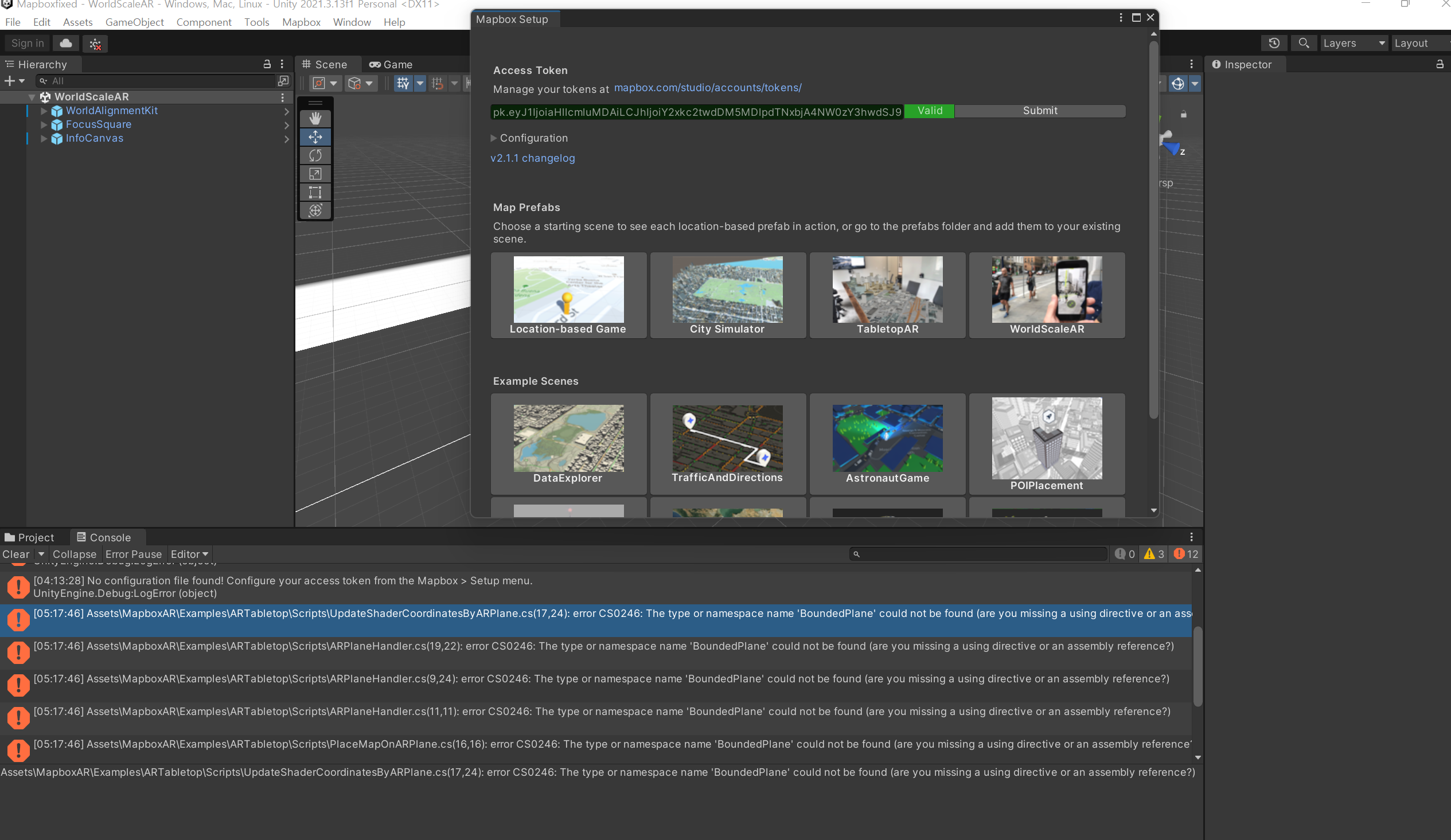
인증 완료
2. Mapbox SDK & AR Core & AR foundaton 충돌

cs0246 에러) The type or namespace name 'ARBackgroundRenderer' could not be found
Mapbox package를 할때 ar foundation이 ar core를 공유하여 marker ar을 구현하기 위해 import 한 ar pacakge와 충돌하여 plugin 파일들이 겹치기 때문에 발생한다. Mapbox가 2019에 업데이트가 중단되어 실시간으로 업데이트되는 유니티 2023버전을 사용시 오류 많아서 2018.4f 로 유니티 버전을 낮춰서 다시 시작하여 해당 버전에서 개발 후 나중에 합치기로 한다.
Unity용 ARCore SDK 이전 가이드 | Google Developers에서 다운
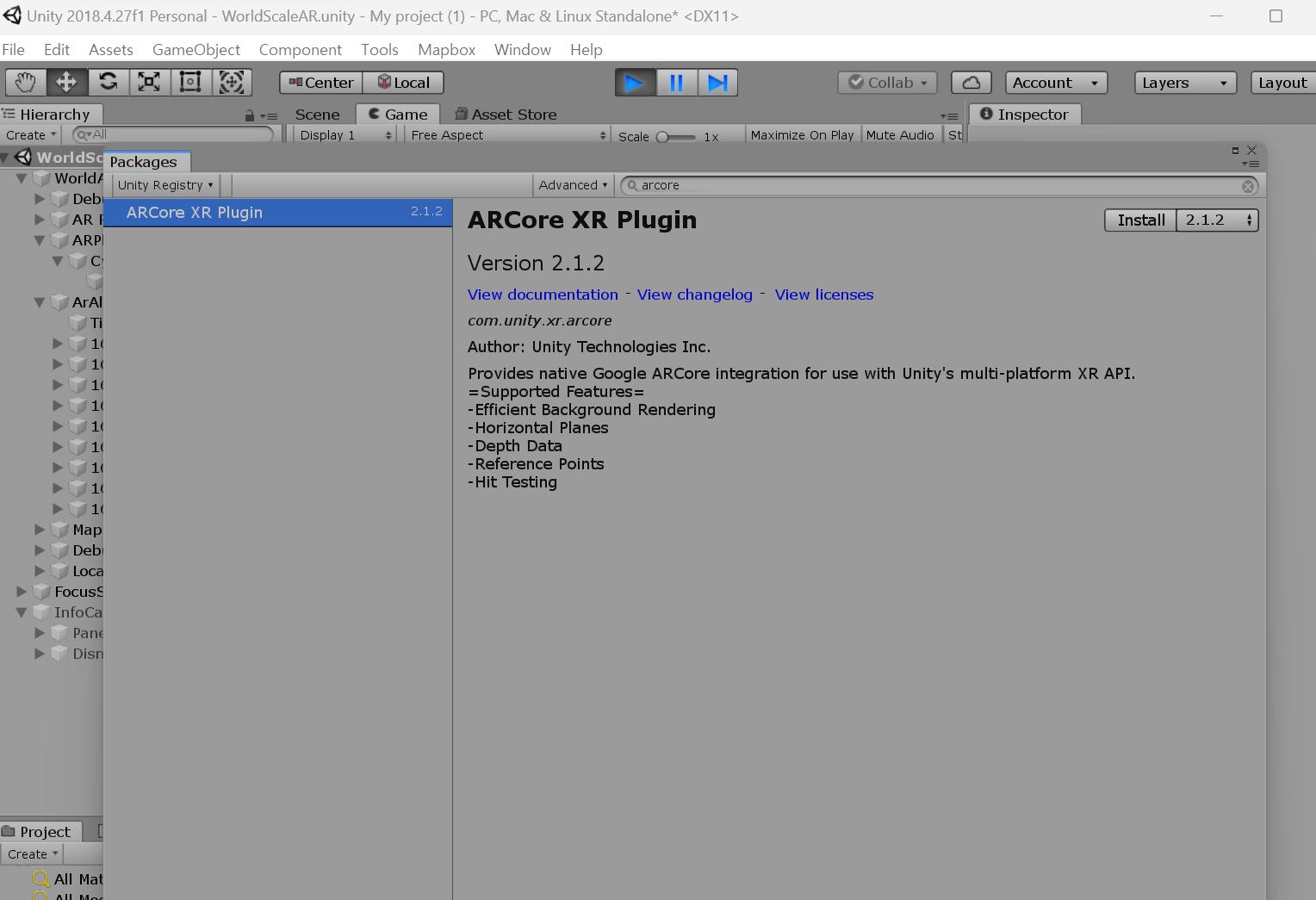
2023버전과 달리 2018의 AR 패키지 이름은 AR Core XR Plugin이다.

File > Build Settings > Android 버전 다운로드 > Switch Platform (개발환경 바꾸기)

위의 cs013 오류 수정편을 참고하여 cs013 error fixed.txt copy, paste
해결
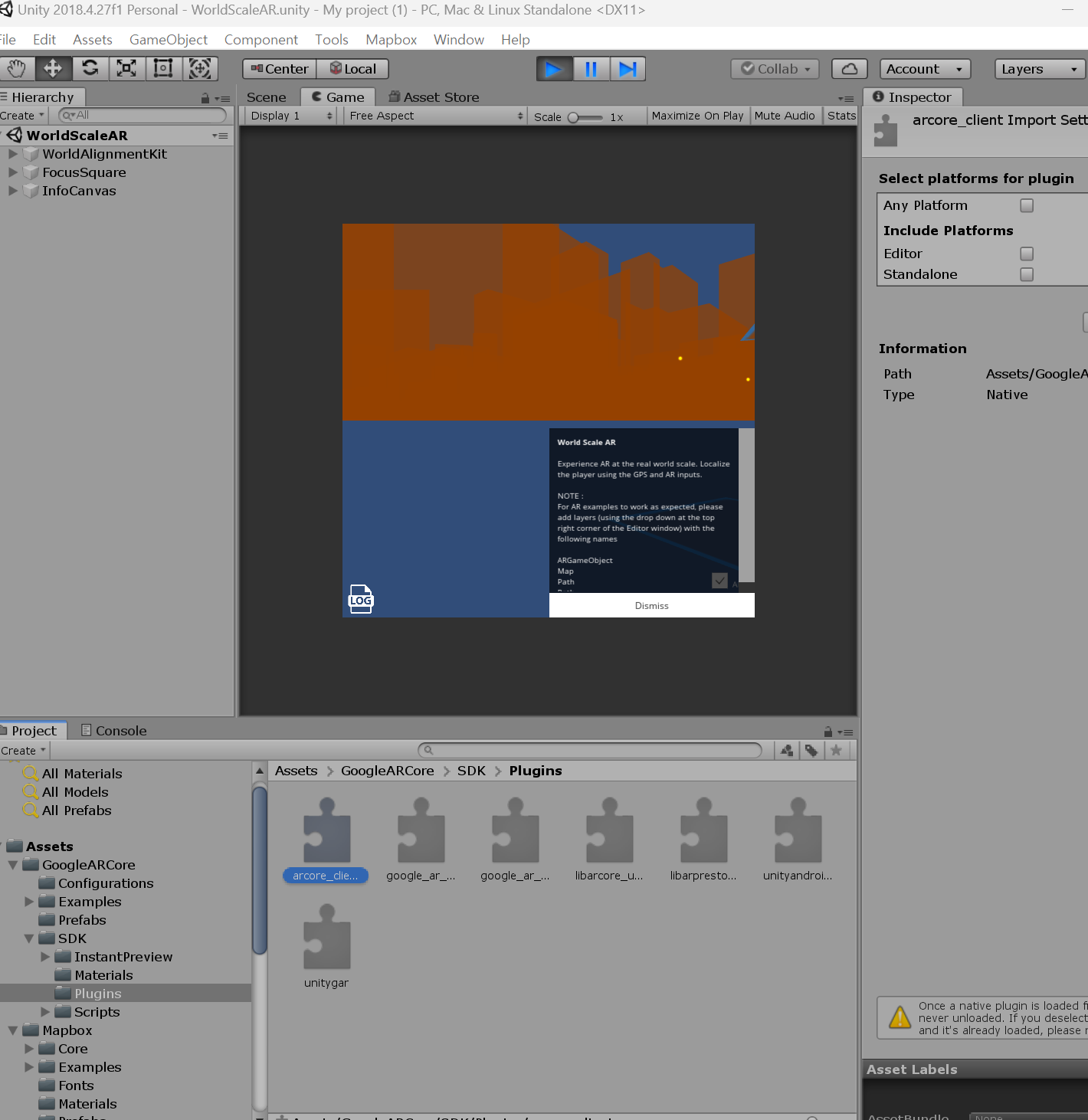
ar 파일들 경로끼리 부딪혀서 오류 나기때문에 AR core 하위의 SDK 폴더안의 plugins 파일 중 arcore_clienct ,uityandroidpermissions, unitygar를 delete >ㅎgoogle_ar_optional.aar, google_ar_required.aar, libarcore_unity_api.so, libarpresto_api.so 만 보존
결과
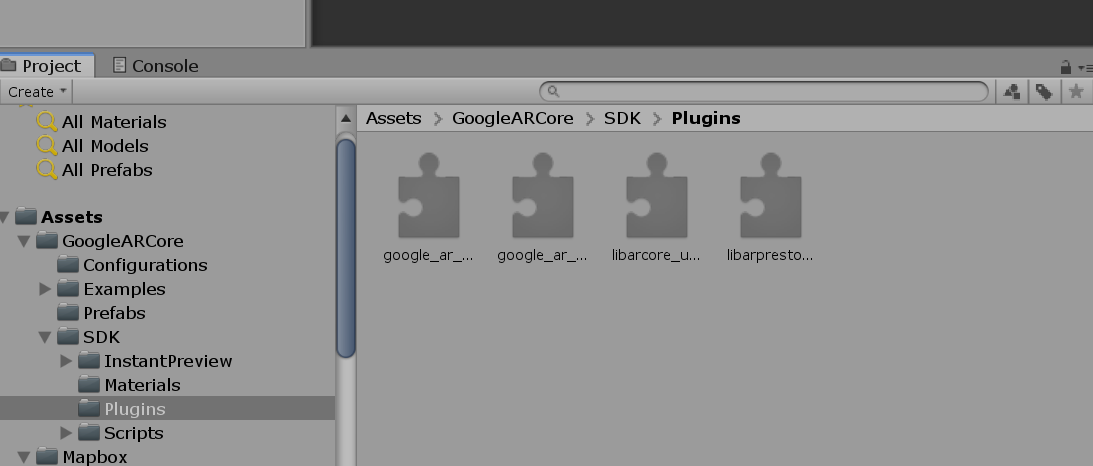
console에서 오류가 사라진다.
*개발을 12월부터 시작하여 나는 적용해보지는 않았지만 2023년 초에 달린 코멘트에 따르면 밑의 방법으로도 작동한다고 한다.
Quick fix on my side :
- Be sure to enable the following packages : AR Foundation // ARCore XR Plugin
- Rename every ARBackgroundRenderer as ARCameraBackground and add the need reference.
- I believe you can remove every "m_BackgroundRenderer.camera = " cause that call is obselete.
"Component.camera' is obsolete: 'Property camera has been deprecated. Use GetComponent() instead. (UnityUpgradable)'" - I guess m_BackgroundRenderer.backgroundMaterial should be m_BackgroundRenderer.customMaterial insted.
- Commented a few more lines related to the *.mode which I didn't find a solution yet...
Here are the 4 files to replaces.
Didn't try the AR yet if still working...
At least the plugin isn't reporting error anymore.
2. GPS 기반 AR 구현
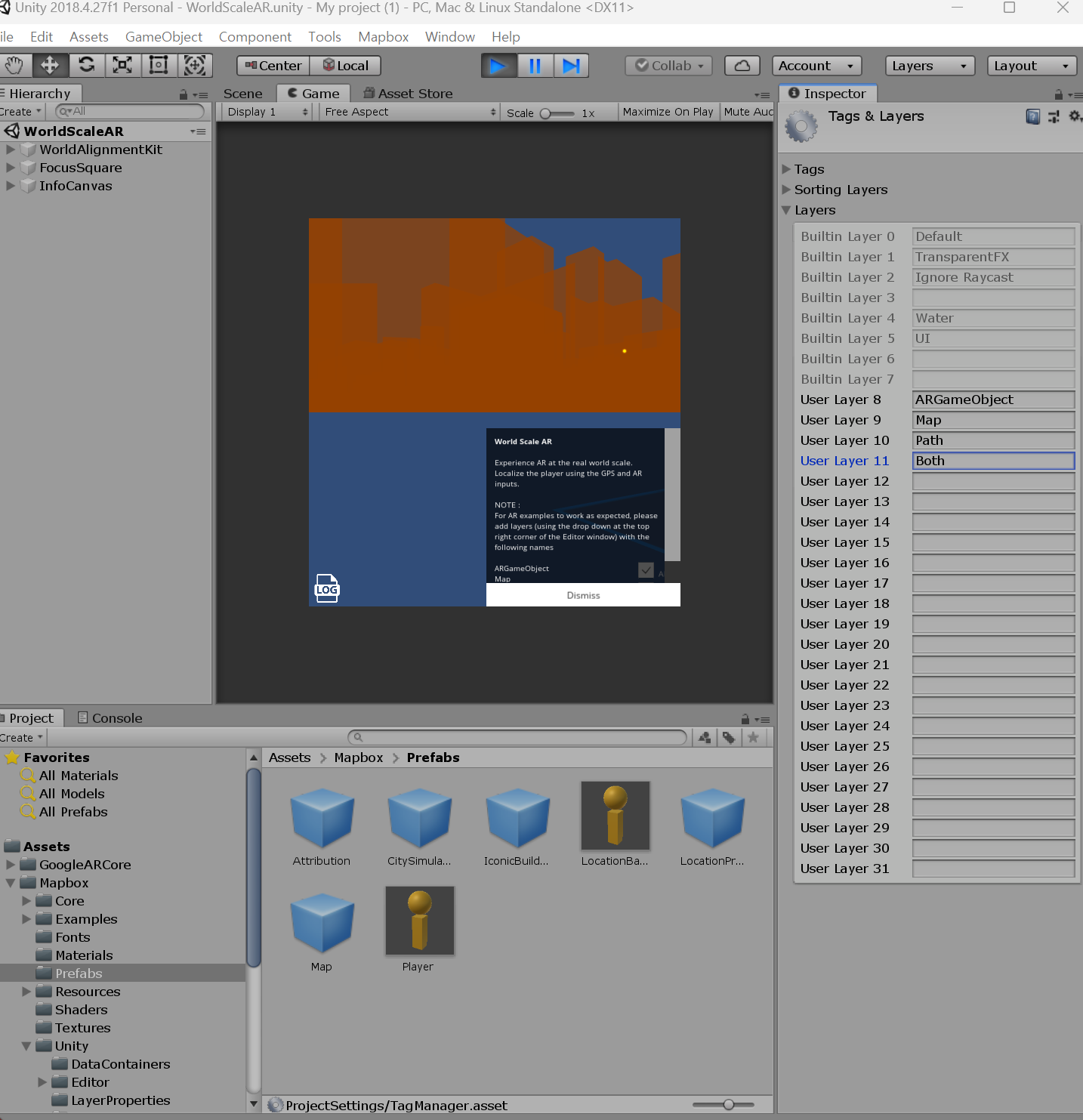
우측 Inspector에 기본형(흐릿하게 표기된것들)만 제공되어 있으나 Location 기반 ar을 구현하기 위해 layer를 추가했다.
1 8:ARGameObject, 9:Map, 10:Path, 11:Both 입력
현재 3d모델링이 된 위치가 미국 샌프란시스코로 되어있을것이다. 현재 위치로 설정하기
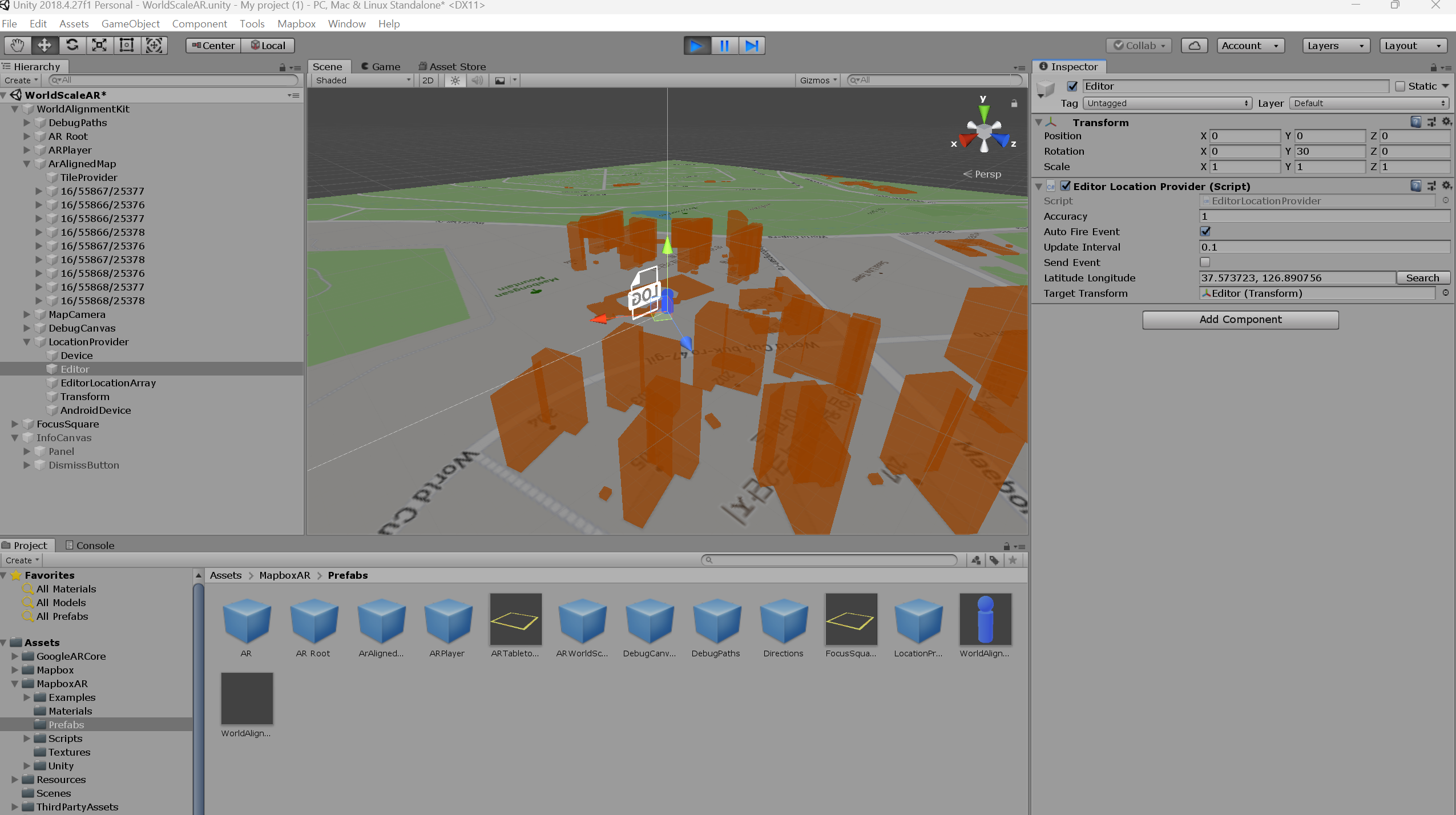
(집에서 블로그를 작성하느라 현재 위치 마포구나 실제 개발은 이화여대로 설정했다.)
2 (좌측) Hierachy > Location Provider > Editor > 우측 Inspector > Latitude Longitude > 현재 위치 위도 경도 삽입
지금 있는 위치 건물들 기본 3D 모델링이 뜨고 저렇게 한국어 나오면 제대로 하고 있는것이다.
ar 작품 넣을작품 좌표 입력하기

3 (좌측) Hierachy > ArAlignedMap >우측 Inspector에 Points of interest > Add Layer
Add Layer는 paint the city ar 작품 개수대로 추가하면 되고 예시로 기본 제공되는 로 ChryslerBuilding으로 설정. 위치는 이 글을 작성 하는 곳 위도 경도로 넣으면 다음과 같이 나온다.
*좌표 설정: Prefab 칸 맨 우측에 원 클릭 > 원하는 ar 작품 삽입 > Prefab Locations > Find by 에 Address or Lat 선택 > 좌표 넣는 Location들이 설정됨> > google map에 나온 위도, 경도 삽입
작품 조정하기
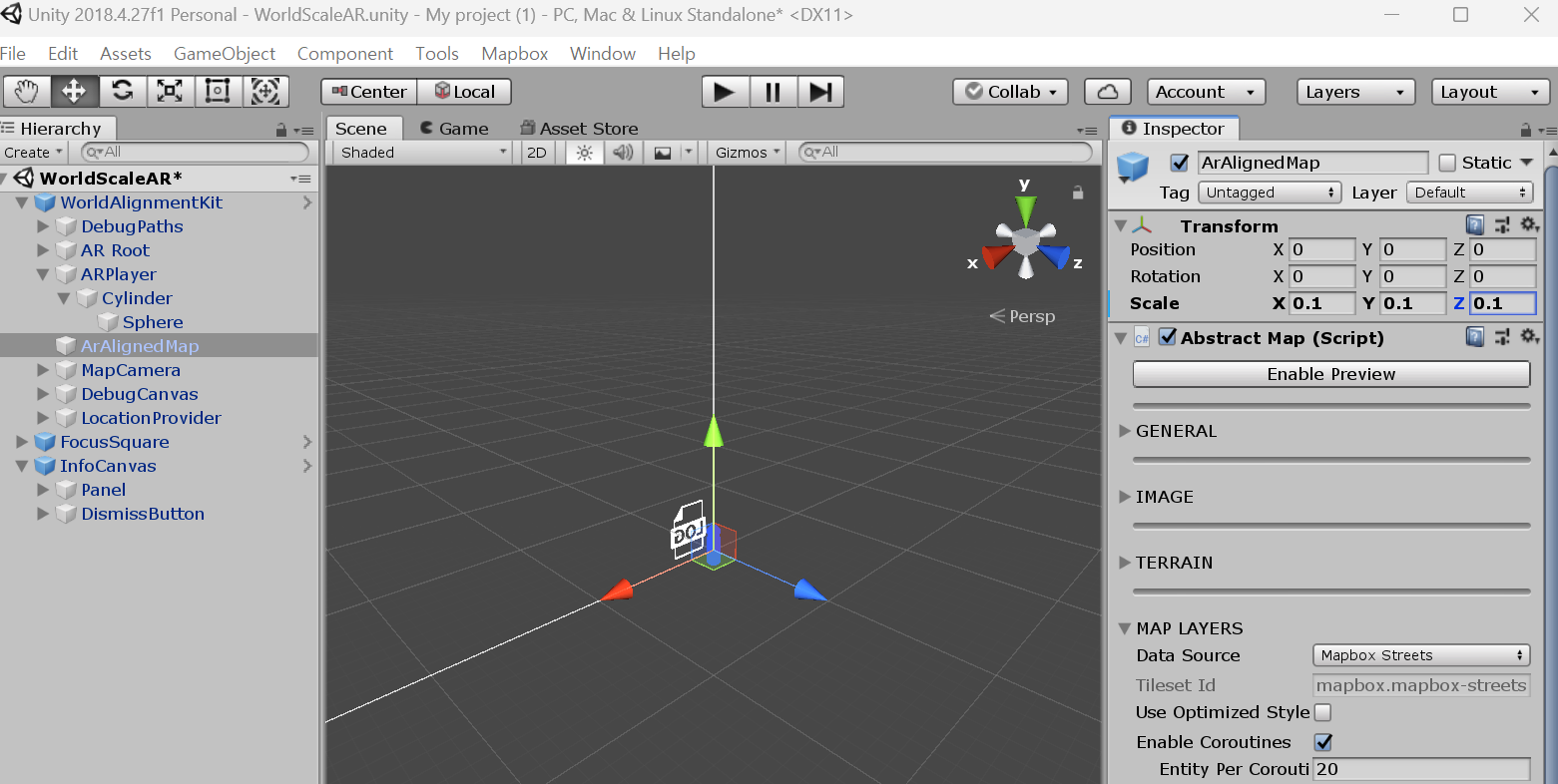
4 (game play 중지) 해당 layer 를 클릭 > Inspector > Scale에서 1 1 1 로 되어있는 것을 원하는 비율로 조정
(위는 간단한 예시고 동일한 방식으로 add layer해서 작품과 해당 location 추가)
결과

해당 좌표에 ar 작품이 나오는 것 확인 가능
위는 오류 해결 과정 및 구현 과정을 개발 완료 후 서술하여 처음부터 보여주고자 집에서 실행한 간단한 예시이고 실제 VRain 팀 Paint the City 앱에서 구현된 좌표기반 Markless AR in Unity 는 다음과 같습니다.

사용자가 위치가 오차 범위 내의 위도 경도가 인증이 되면openbrush로 그려놓은 작품중에 선택하여 띄울 수 있다.
3. Target Image를 이용한 Marker기반 AR 구현
위도 경도가 실내나 몇 공간에서는 오차범위가 예상치보다 커져서 사용자 위치 인증을 1차 gps 2차 주변 공간을 활용한 타깃이미지를 통해 받았다.
Unity, Vuforia 설치 + AR 구현 w/ 티모시 샬라메 (tistory.com)
Unity, Vuforia 설치 + AR 구현 w/ 티모시 샬라메
Paint the City VRain 팀이 제안하는 도시재생 모델로 1. 도시 재생이 필요한 지역을 3d모델의 형태로 구현하여 사용자들에게 제공을 하여 해당 사용자들이 vr로 도시에 그림을 그리고 원하는 에셋을
vaticancameo.tistory.com
저번 학기에 제출한 기술 블로그에 기술했는데 이때는 유니티 2022 버전으로 개발했기에 현재 다운그레이드 된 2018.4f개발 환경에 맞춰 바뀐 점을 간략히 기술하겠다.
1 ARCore import > (좌측) Hierachy > AR Session Origin 을 WorldAlignmenKit 하위에 설정
두 AR 라이브러리가 같은 카메라를 사용하도록 설정:
2 AR SEssion Origin > Camera 에서 (초기 설정인)ar camera-> (WorldAlignmentKit에서 사용하는) Main Camera로 수정
타겟 이미지는 여러개 사용가능 하지만 그에 따른 AR 작품은 하나만 설정된다. marker : AR을 일대일 대응시키기위해 다음과 같이 추가 스크립트를 작성했다.
//MultiMarker.cs

using System.Collections;
using System.Collections.Generic;
using UnityEngine;
using UnityEngine.XR;
using UnityEngine.XR.ARFoundation;

[RequireComponent(typeof(ARTrackedImageManager))]

public class NewBehaviourScript : MonoBehaviour
{
    [SerializeField]

    private GameObject[] placeablePrefabs;

    private Dictionary<string, GameObject> spawnedPrefabs = new Dictionary<string, GameObject>();
    private ARTrackedImageManager trackedImageManager;


    private void Awake()
    {
        trackedImageManager = FindObjectOfType<ARTrackedImageManager>();

        foreach (GameObject prefab in placeablePrefabs)
        {
            GameObject newPrefab = Instantiate(prefab, Vector3.zero, Quaternion.identity);
            newPrefab.name = prefab.name;
            spawnedPrefabs.Add(prefab.name, newPrefab);
        }

    }

    private void OnEnable()
    {
        trackedImageManager.trackedImagesChanged += ImageChanged;

    }

    private void OnDisable()
    {
        trackedImageManager.trackedImagesChanged -= ImageChanged;
    }

    private void ImageChanged(ARTrackedImagesChangedEventArgs eventArgs)
    {

        foreach (ARTrackedImage trackedImage in eventArgs.added)
        {
            UpdateImage(trackedImage);
        }

        foreach (ARTrackedImage trackedImage in eventArgs.updated)
        {

            UpdateImage(trackedImage);
        }

        foreach (ARTrackedImage trackedImage in eventArgs.removed)
        {
            spawnedPrefabs[trackedImage.name].SetActive(false);
        }

    }

    private void UpdateImage(ARTrackedImage trackedImage)
    {
        string name = trackedImage.referenceImage.name;
        Vector3 position = trackedImage.transform.position;

        GameObject prefab = spawnedPrefabs[name];
        prefab.transform.position = position;
        prefab.SetActive(true);

        foreach (GameObject go in spawnedPrefabs.Values)
        {
            if (go.name != name)
            {
                go.SetActive(false);
            }
        }
    }


}
그 외에는 1차 기술 블로그에 작성한 target image 기반 ar 작품 관람 글을 그대로 따라하면 된다.
결과

다음은 작품을 관람하기 위한 사용자 인증을 1차 이화여대 정문의 위도 경도 gps값, 2차를 정문의 벚꽃 조각 작품을 타겟이미지로 설정하여 앱을 실행한 결과다. 1,2차 인증을 통과하면 다음과 같이 앱내 기능 (작품 관람, 사진찍고 좋아요 등 피드백 남기기)이 활성화 된다.